New Tech

Latest Technology In The World

Showing posts with label How To. Show all posts

Thursday, March 6, 2014

How to Make Voice Calls Using Facebook Application

Facebook social network is the largest networks on the Internet, and used by more than  billion users, most of users have list of friends close to them and communicate with them on a permanent basis, but the user needs sometimes to communicate voice with his friends, so he resorts to applications such as Viper and others.
The thing which no one know it that there is a service to make voice calls through the Facebook application itself, and also the Facebook Messenger application for Android and iOS.

How to make voice calls using Facebook application:

1- Go to the person you want to call him from chat list.
2- Press the button i located in top.
3- Press the Call button.


If the button is not enabled, the reason is the person you want to call him is not on the site in the same time.

Sunday, December 15, 2013

How to Change Folder Color to another Beautiful Colors in Windows

The computer contains many files such as music, pictures, videos and games, and to ensure access to the files we divide them into folders to distinguish them from each other.

Today we offer you an easy way to increase discrimination folders by changing the color of the folder using Folder Colorizer program, for example, you can coloring the videos folder in red and the games folder in green and so on.

Folder Colorizer allows you to change the colors of your folders with ease to set it apart so you can refer to it easily.

The program comes with eight preset colors and you can choose any extra color, and the program also lets you return to the basic color of the folder.


The program does not affect the performance of my system any way and works seamlessly with all versions of Windows, a wonderful program to change the colors of Windows folders and worth a download and experiment.

How to Change Folder Color to another Beautiful Colors in Windows:

1- Download Folder Colorizer program from official website.

2- Install the program.


3- After the installation process finished, the program runs without any action.

4- To change the color of the folder, right click on the folder, choose your favorite color from Colorizer list.


5- The main colors list contains just 8 colors, you can add more colors by clicking on "Colors".


6- You can restore the original color of the folder, just click on "Restore original color" from Colorizer list.

Wednesday, December 4, 2013

How to Know Whether Programs and PC Parts are Compatible with Windows 8.1

Many users of Windows 8.1 suffered from a lot of problems after the update to the latest version, the reason for this is the lack of compatibility between the hardware and the system, and although install the latest version of the drivers of the hardware, but the problems did not disappear .
   
So before updating to the Windows 8.1, you can ensure the compatibility of the programs that are working on, such as "Photoshop" or hardware parts of the computer, through the website provided by Microsoft specifically to make sure before the update .
  
All you needs is access to the website and then type the name of the program or the name of the hardware part to show the extent of compatibility, in addition to that the website contains a list of the most popular programs or hardware parts which compatible with the system at the bottom of the page.

How to know whether programs and PC parts are compatible with Windows 8.1:

1- Open the Website.


2- Type the program or the hardware part.


3- Click Search.


4- You can see the result.

Sunday, November 24, 2013

How to Hide any Partition of the Hard Disk Without Losing Data

All of us has own data and does not want anyone to access it, there are many ways to hide this data, but most of them require download and install programs and are often not free.
  
Today we will offer you a secure and easy way to hide data without affecting the data or losing it, that by hiding a partition of the hard disk drive, so you can put all your important data on a specific partition of the hard disk and use this method to hide this partition to prevent anyone to access your data.
  
Also this method is used in solving the problem of the disappearance of one of the disks because of some problems in Windows, and this problem facing a lot of users.

Follow these steps:

1- Right-click on Computer, click on Manage.


Saturday, November 23, 2013

How to Open Programs by Keyboard Shortcuts

Everyday we open many programs , and when we want to open any program, we go to the desktop or the Start menu and choose the program we want to open it.
  
Today we offer you an easy way to open any program without going to the desktop or the Start menu, we will create a shortcut from the keyboard for any program we want, so we can open it directly from the keyboard.

How to Open Programs by Keyboard Shortcuts:

1- Choose the program you want to create a keyboard shortcut for it, for example we choose Google Chrome program.

2- Go to the shortcut of the chosen program, right-click on the shortcut, then click on Properties.


3- Click on Shortcut tab, then click on Shortcut key box.


4- Choose the key on the keyboard you want to make it as a keyboard shortcut of the program, for example we choose H key, then click OK to save changes.


Note: keyboard shortcut works automatically with Ctrl and Alt keys, so the keyboard shortcut will be Ctrl+Alt+Key.


5- Now when we want to open Google Chrome, we just press Ctrl+Alt+H to open it.


Friday, November 22, 2013

How to Convert Video Files Without Desktop Programs

In earlier times, we put several free programs to convert video and audio formats to other formats such as Any Video Converter, Freemake Video Converter and Format Factory.
  
Today we will use an easy way to convert audio, video, images and documents files without using any desktop programs, we will use free online website to do the conversion process.
  
Free online file converter is a free website used to convert audio and video files without the need to download and install conversion software, in addition to the ability to convert images and documents formats such as PDF to any formats you want.
  
Free online file converter is a global website provides a free service to convert all file formats through the website, this website will make it easy to convert files from any format to another.
  
In this post, we will explain how to convert video files and you can try to use this website to convert other files such as audio and images.

How to Convert Video Files Online Without Desktop Programs:

1- Open Online Converter website.

2- After you open the website, several choices appears such as Audio converter, Video converter, Image converter, Document converter.


Wednesday, November 20, 2013

What is the Specifications of your PC? Know them by Speccy Program - Free Download

Many people asks you what are the specifications of your PC? What is the RAM capacity? What is the type of the CPU?
Do your answer will be "I don't Know"? 
We'll help you that your answer will be "Yes I know".
  
There are many ways to know the specifications of your PC, and we will use an easy way through Speccy program.
  

Speccy is a free program allows you to know the specifications of your PC whether it is a desktop computer or laptop, Speccy gives detailed information and statistics for all the pieces of your computer , including the processor , motherboard, random access memory RAM, graphics card , hard drive, optical drives and other information .
  
Through Speccy program you can know the brand and model of the processor, hard drive size and speed , amount of memory (RAM), graphics card type and capacity,the operating system that installed on the computer , in addition , it displays the temperatures of the different pieces of the computer so you can easily find out if there is a problem or not.
  
Speccy program allow you to develop your computer through the information, regarding memory for example, you can find out how much memory can be added on the computer by knowing the size of the installed memory and the maximum size possible that absorbed by the computer.
  
Speccy  program produced by Piriform company, which produces the famous CCleaner program which used to clean up remnants of Windows.


Program Website: 


Program Version:
1.24


Program Size:
4.55 MB


Compatibility:
Windows 8, 7, Vista, XP


License:
Freeware
  
Free Download:


Speccy Screenshots:

Summary of Specifications 


Operating System details 


Processor type and number of cores 


RAM details 


Motherboard manufacturer and model


Graphics card  

Saturday, November 16, 2013

How to Update and Install Drivers of Your Computer

Did you miss the driver of the printer or graphics card? Do not worry, we will offer you an easy way to install your lost drivers.

SlimDrivers program saves you the trouble of searching for drivers that you need and also save your time, effort and cost.

SlimDrivers program search the internet for drivers needed by the computer and even drivers needed by the devices connected to your computer via USB, and install or update it to save you the trouble of searching and take care of all the effort required.
  
SlimDrivers program is one of the best programs find drivers of computer from the Internet, the program scans your computer completely to identify the incomplete and lost drivers on Windows and download it from the Internet and then install it on your computer.
   
SlimDrivers program can update the drivers of your computer to the latest version to enjoy the best performance for your computer, it can retrieve and update all the drivers of your computer without exception, and create a restore point to avoid problems occurred during the process of updating the drivers.


How to Update and Install Drivers of Your Computer:

1- Download SlimDrivers from official website.

2- Install the program.


Tuesday, November 12, 2013

How to Convert PDF to Excel Without any Desktop Programs

When you want to share your files with your friends, usually you convert your files such as Word, Excel and other files to PDF format, because this type of files easier to share, more secure, and cannot be edited easily.
  
But what if you have a PDF file contains tables and numbers, and you need to make changes on it? Then you need to convert the file from PDF to Excel, and this requires you to search for programs to do the conversion process, and these programs are often not free.
  
Today we will offer you a free and easy way to convert PDF files to Excel files without using any programs, Free Online PDF to Excel Converter is free conversion services that does precisely that: it turns non-editable PDF files into Excel spreadsheets that are easy to work with.
  
  • The wait time for conversion is usually only up to a minute or two.
  • It is completely free and there is no registration required.
  • You can upload and convert as many PDF files as you wish.
  • The converter works smoothly and delivers documents that completely match the original file.
 Note that this free conversion tool works with files that are up to 2 MB in size. 


The service is easy to use and requires users to make simple steps:

Video:

  
1- Open the website.

2- Click on the “Choose file” button, and choose your PDF file.


Friday, November 8, 2013

How to Recover Hidden Files in USB Flash or Hard Disk


Some of types of viruses such as malware may hides important files and become unusable or be erased entirely, and therefore you will have to format your computer, no doubt you will lose all your important files on your hard drive or flash drive if you do not find a way to take them out.

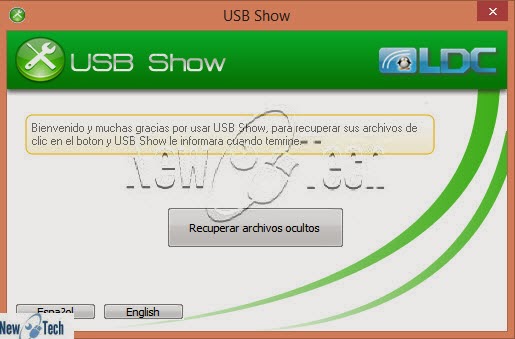
Today we will explain a way that allows you to restore your hidden files in the hard disk drive or flash drive, we will use a small program which called USB Show.

USB Show is lightweight application, but it is very effective, it helps you to recover hidden files by different viruses, whether they intended to hide it from the hard disk drive or USB flash.

Even if the name of the program by word USB, it can work with hard drives as well, but note that the scanning process will take a lot of time, especially with the large-sized disks.

USB Show program has a friendly interface and very easy to use, you can choose the disk you want to scan and process starts immediately after pressing the button in the center "Recovery the hide files".


How to Recover Hidden Files in USB Flash or Hard Disk?

1- Download USB Show program from the official website.

2- Right click on the file and extract it.


3- Open the program by double click on it.


4- USB Show program is available in two languages: English and Spanish, we will use English language.


5- To convert the language, click on English button.


6- Click on Recovery the hide files button which is in the center.


7- Choose the disk you want to scan to recover the hidden files, then click OK.


8- The process may take time depending on the number of files that hidden inside the disk. 


9- After the process ends, this window appears make sure that the process was successful, and therefore click on OK.


Sunday, November 3, 2013

How to Minimize Video Size Without Affecting the Quality

Hello, do you want to minimize the size of your video files, because there are taking large size and space from your hard drive, but do not want to use any complicated software, and do not want to change its quality?
  
Today we will talk about how to minimize video size without affecting the quality of it, always if we want to minimize the video size, the quality of the video is affected by this process, but today we will use away that minimize the size of video and the quality of it is not affected.
  
We will use Moo0 Video Minimizer to do this process, Moo0 Video Minimizer program is to reduce the size of the video file to minimum size with the possibility of keeping the same quality, Moo0 Video Minimizer program is a free tool and works very quickly and there are no restrictions on its use.
  
Moo0 Video Minimizer is an easy to use program that can be used to reduce any videos in a simple and very fast way

Moo0 Video Minimizer allow you to reduce the size of video so it can save your time and effort if you want to upload a video file to the Internet, or burn it on CD/DVD.


How to Minimize Video Size Using Moo0 Video Minimizer:

(Click on Images to Enlarge it)

1- Download Moo0 Video Minimizer from its official website.

2- Double click on setup file to install the program, at the end of installation click on Close. 


3- After the installation is completed, run the program.


4- Add the video file to convert and minimize its size, click on File, Browse and Process, choose your video file and click Open.


5- The program starts the conversion process, after the process is completed a small window will appear, click on OK.


6- Open the output folder, you can get the output file.